NTP
Introduction
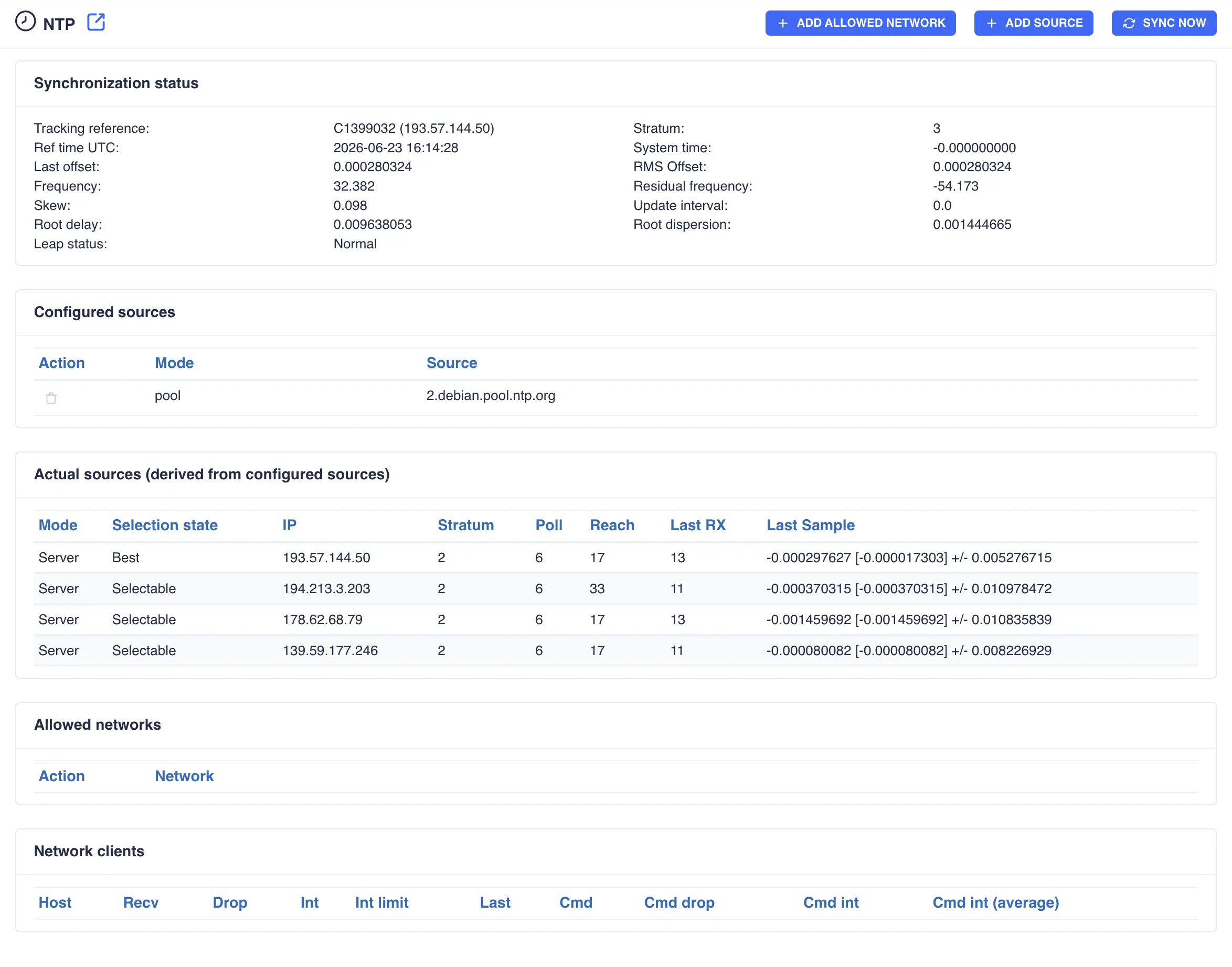
The cluster supports the Chrony Network Time Protocol service. Visiting the page shows the current Chrony configuration and status:
If Chrony is not installed then the following message will be displayed:

Synchronization status
This panel provides a live snapshot of Chrony’s synchronisation state, refreshing every 2 seconds. It shows which reference source the system is tracking, when it was last updated, and key metrics such as offset, frequency, skew, delay, dispersion, and stratum. Together these values indicate how stable, accurate, and reliable the system clock is at this moment. Hover over any field label for a more detailed explanation:

Configured Sources
In chrony, sources are simply the time providers that your system consults to keep its clock accurate. A source can be an NTP server on the internet, a local GPS receiver, a hardware reference clock, or even another machine on your network. Chrony continuously measures how reliable each source is (checking factors like delay, jitter, and stability) and then chooses the best ones to synchronise with. It also tracks how each source behaves over time, so it can quickly switch away from any that become inaccurate or unreachable.
To add a source click the + ADD SOURCE button and complete the required fields:
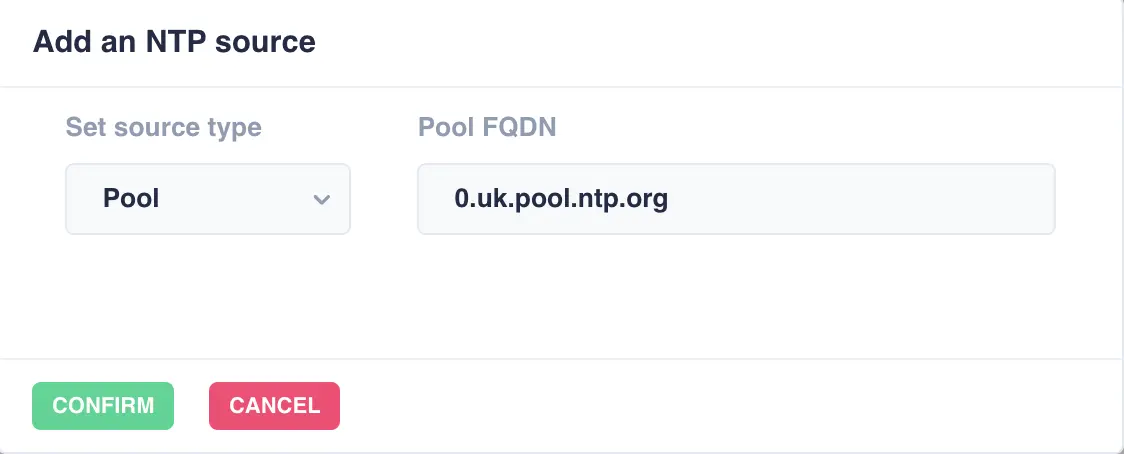
Choose between a server or a pool. An NTP server is a single, specific time source; one machine queried for the current time. An NTP pool is a large, rotating collection of many volunteer‑run NTP servers grouped under one hostname (like pool.ntp.org). When a pool is used, the node automatically gets several different servers for redundancy and better reliability, instead of depending on just one.

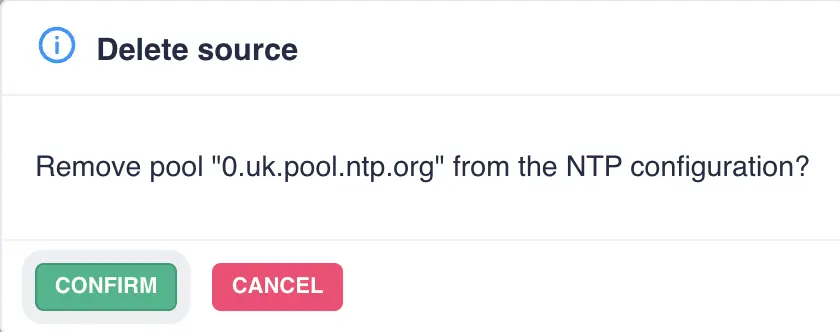
Sources can be deleted from the configuration by clicking the trash icon in the action column of the configured sources - click to confirm the deletion:
Minimal sources required
At least one source must always be configured. When only a single source exists, the delete (trash) button is disabled to prevent removing the last remaining one.
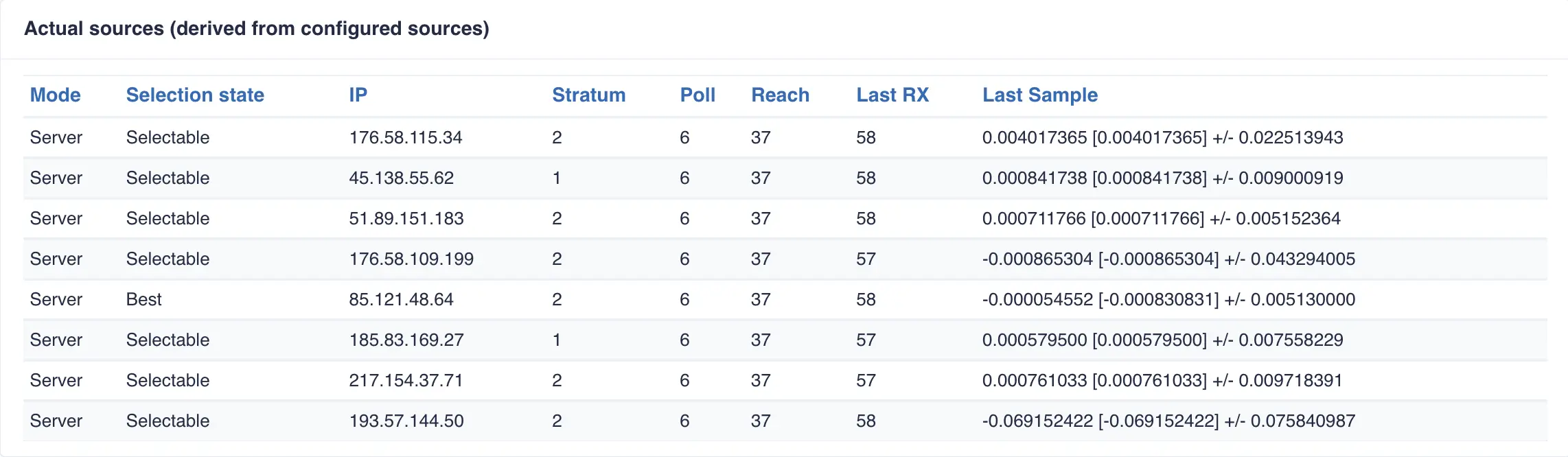
Actual Sources
This section lists all time sources currently known to Chrony, including their state, reachability, and measured performance. Each source shows how well it is responding, how stable it is, and whether it is being used to discipline the system clock. These details help you understand which sources are contributing to synchronisation and how reliable they are over time:
Allowed networks
This setting defines which network ranges are permitted to query or synchronise with the local NTP service. Only clients whose IP addresses fall within the allowed networks can request time updates or interact with Chrony. This provides a simple access‑control layer, ensuring that time synchronisation is restricted to trusted subnets rather than being exposed to the entire network.
To add an allowed network click the + ADD ALLOWED NETWORK button and complete the required field:
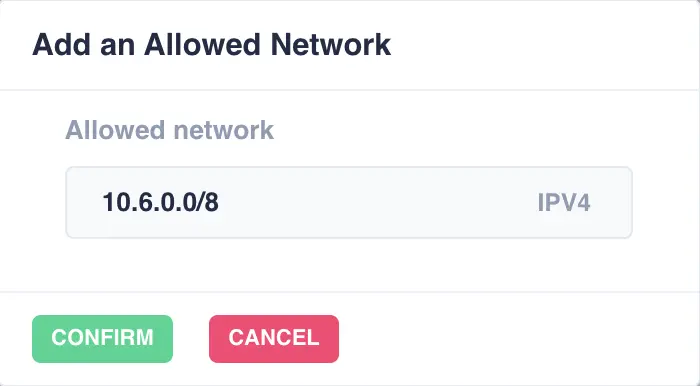
This will update the list of allowed networks:

After adding the network to the allowed list, a machine becomes a Chrony client by configuring
its own Chrony service to use your server as an NTP source. This is done by adding a server or
pool line in the client’s chrony.conf pointing to your Chrony server’s IP or hostname - the format
of a server line is:
Once the client restarts Chrony, it will begin polling your server, evaluating it as a time source, and synchronising with it if it proves reliable.
Note
A source is marked as ‘unusable’ when the client can contact the server but Chrony determines the time data is not reliable enough to use. This may be due to the server not being synchronised, excessive offset or jitter, poor reachability, or other quality checks failing.
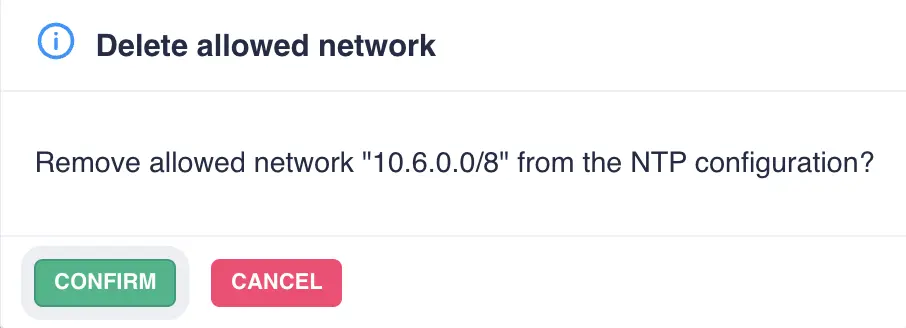
Remove an allowed network from the configuration by clicking the trash icon in its action column - click to confirm the deletion:
Network clients
This section lists all machines on the network that are currently using this system as their NTP server. For each client, it shows when it last contacted the server, how frequently it is polling, and whether its requests are being received reliably. These details help you confirm that authorised devices are synchronising correctly and that the NTP service is being used as expected across the network:
