Proxmox
Introduction
The Proxmox Settings page configures connectivity to one or more Proxmox VE datacenters and
controls related integration features that are displayed on the System → Proxmox page.
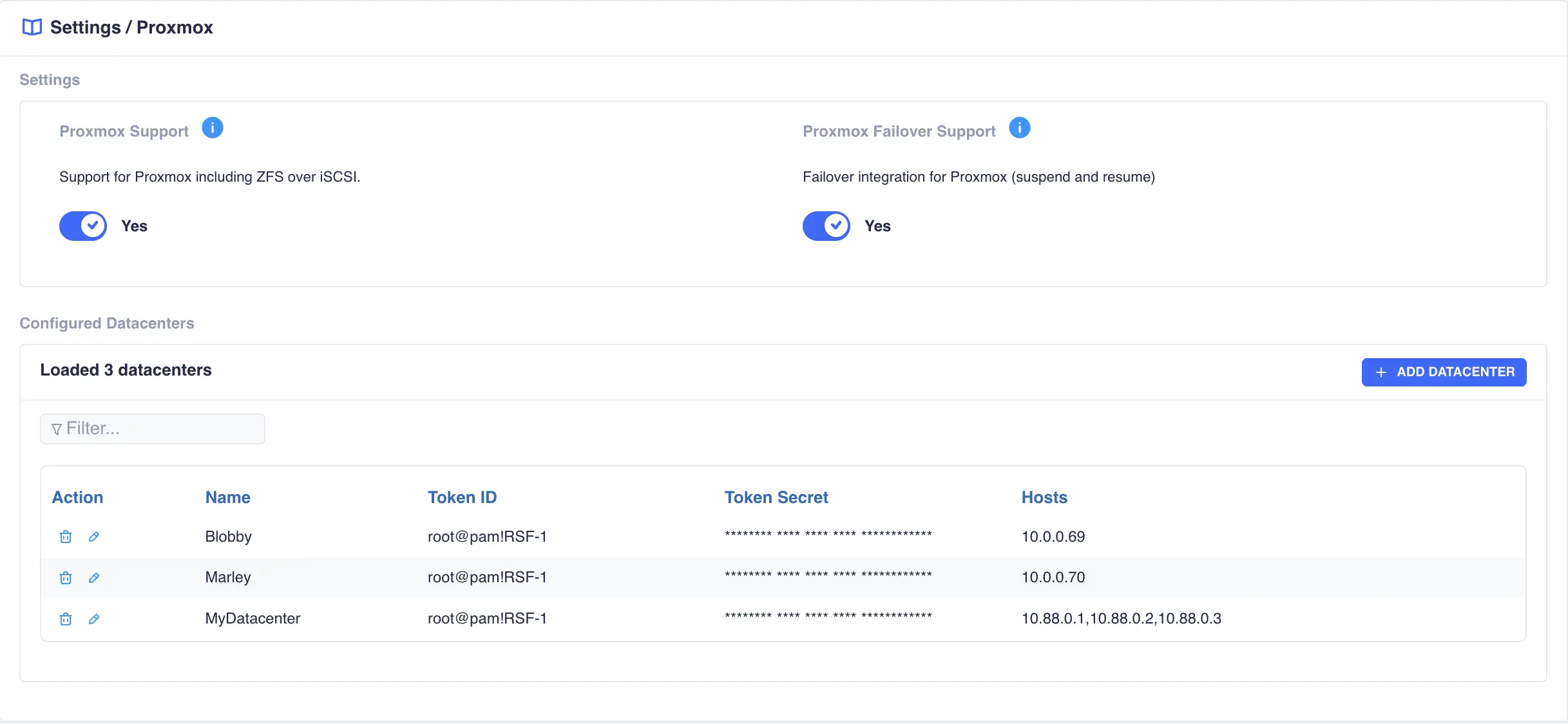
There are two global settings that enable Proxmox support in the interface and manage failover behaviour for high-availability pools.
Configured datacenters are listed in a table that shows the connection identity, authentication details, and associated hosts. Use this page to enable or disable Proxmox features and to add, edit, or remove datacenter connections.
Settings
| Option | Description |
|---|---|
Proxmox Support |
Enables Proxmox support in the graphical interface. When active, the system provides additional support for Proxmox, including ZFS over iSCSI extensions that create volume links used by the Proxmox remote client. |
Proxmox Failover Support |
Enables failover integration for Proxmox. On a manual failover, each Proxmox instance that uses a high-availability pool is suspended before the pool is moved to another cluster node. The instance is resumed when the HA service starts on the destination node. |
Configured Datacenters
The Configured Datacenters section lists every datacenter connection that has been defined. Each entry is identified by a local name (used for display only and not required to match any name in Proxmox), a Token ID, a masked Token Secret, and one or more host addresses. When connecting to a Proxmox cluster, all host members should be supplied.
The Action column provides controls to edit or delete an individual entry.
Adding a datacenter
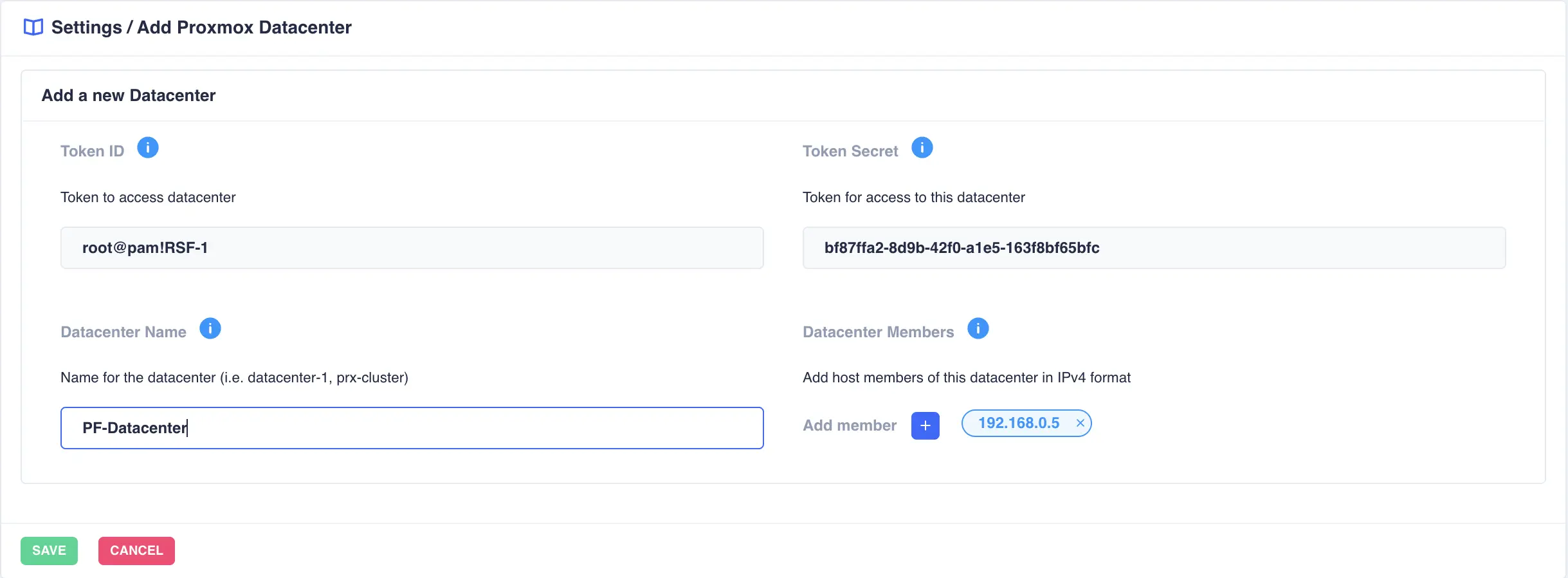
To add a new connection, select the + ADD DATACENTER button. This will bring up the
datacenter configuration screen (example settings have been provided):
| Field | Description |
|---|---|
Token ID |
The API token identifier used to authenticate with the Proxmox datacenter (for example, root@pam!RSF-1). See the section Obtaining a secret from Proxmox below for details. |
Token Secret |
The secret associated with the Token ID. This value is used to authenticate requests to the datacenter. |
Datacenter Name |
A local display name for the connection (for example, PF-Datacenter or prx-cluster). The name is used only for identification within the interface and does not need to match any name defined in Proxmox. |
Datacenter Members |
One or more IPv4 addresses of the Proxmox hosts that belong to this datacenter. Additional members may be added with the + button. When the datacenter represents a Proxmox cluster, supply every node address that should be reachable. |
Note
Once a datacenter is added it can take up to one minute for it to show up on the Proxmox page System → Proxmox.
Obtaining a secret from Proxmox
The Token ID and the copied Token Secret are the values required when adding a datacenter connection on the Proxmox Settings page.
To obtain a Token ID and Token Secret for use with a Proxmox datacenter connection, create an API token in the Proxmox VE interface:
- In the Proxmox VE web interface, navigate to
Datacenter → Permissions → API Tokens. -
Click the
Addbutton. TheAdd: Tokendialog opens: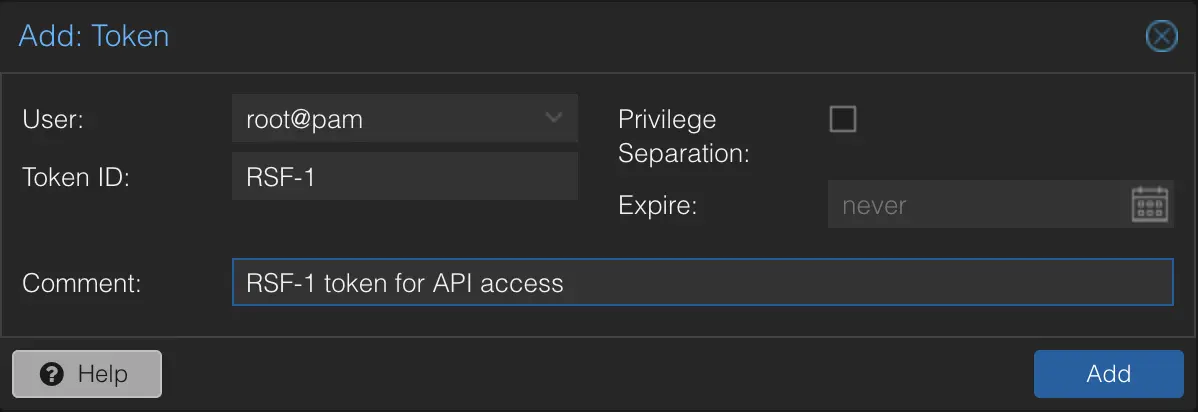
-
Complete the dialog as follows:
User: Select the user that will own the token (for example,root@pam).Token ID: Enter an identifier for the token. The valueRSF-1is recommended, although any valid token ID may be used.Privilege Separation: Leave this option unticked. Privilege separation must remain disabled.Expire: Set the expiration as required. Selectingnevercreates a token that does not expire.Comment: Optionally enter a descriptive comment (for example,RSF-1 token for API access).
-
Click
Add. A confirmation dialog displays the full Token ID (in the formuser@realm!tokenid) and the Token Secret.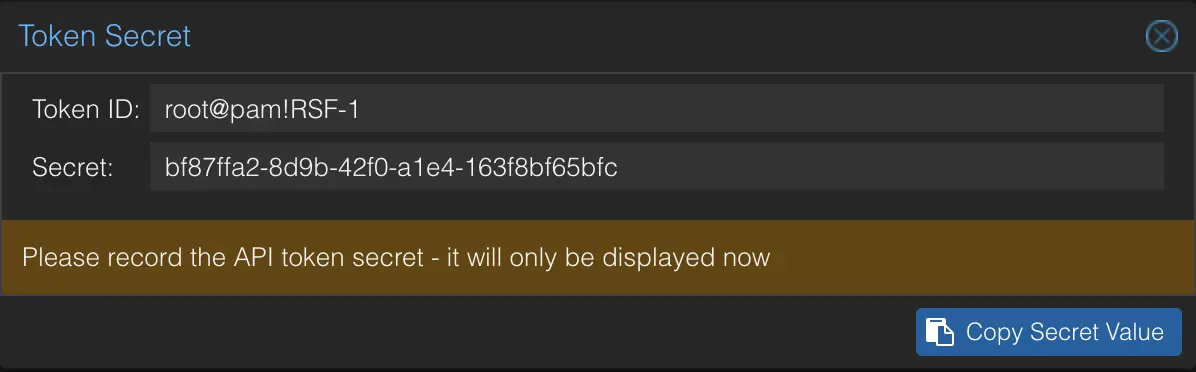
-
Click the
Copy Secret Valuebutton to copy the secret to the clipboard. Record the secret immediately; it is displayed only once and cannot be retrieved later.